
If you sell on Wix in the Philippines, your customers want to pay with GCash. Most of them already have it on their phone, and many don't have a credit card. The trouble is that GCash isn't one of Wix's built-in payment methods. This guide walks through each way to take GCash on Wix, what it costs, and how to pick the one that fits your store.
What Wix supports in the Philippines
Wix lets you connect outside payment providers. For the Philippines, Wix's Help Center lists PayPal, Xendit, Paymentwall, HitPay and DragonPay (checked October 2026). Some of these offer GCash as a method at checkout. Wix also lets every store, in every country, accept payments offline and record them by hand, using what Wix calls Manual Payment.
That gives you three real options.
Option 1: A payment gateway
A payment gateway puts a GCash option on your Wix checkout. The customer pays inside the checkout, the gateway confirms it, and Wix marks the order as paid. Nobody on your team has to look at a receipt.
How to set it up
- Pick a provider from Wix's list for the Philippines and check with them that GCash is switched on for Wix stores.
- Sign up with the provider. Expect to verify your business, which can take a few days.
- In your Wix dashboard, open Settings, then Accept Payments, and connect the provider.
- Place a small test order to see GCash at checkout before you tell customers.
What it costs
Gateways charge a fee on every sale. As an example, PayMongo publishes a rate of 2.23% per GCash payment, plus 12% VAT on the fee (paymongo.com/pricing, October 2026). Each provider sets its own rates, so compare them before you sign up.
Good for: stores with steady order volume that want payments confirmed automatically. Not great for: small stores where a percentage of every sale hurts, or owners who don't want to go through merchant verification.
Option 2: Wix manual payment to your own GCash
This is what most small Philippine stores on Wix do. You add a manual payment method, the customer places the order, then pays your GCash number or QR code outside Wix. The order waits as unpaid until you record the payment.
How to set it up
- In your Wix dashboard, open Settings, then Accept Payments, and find Manual Payment.
- Give it a clear name, such as GCash or bank transfer.
- In the instructions, add your GCash name and number (or say the QR code is in the confirmation email), your bank details if you take transfers, and what you need back: the order number and the reference number.
- When the money arrives, open the order and record it with Collect Payment.
What it costs
Nothing extra from Wix, and no fee per sale.
The catch: Wix has nowhere for the customer to put their proof of payment. So the screenshot arrives in Messenger, Viber or email, and someone has to match it to the right order by hand. With ten orders a week that's fine. With fifty, receipts get lost. We wrote a whole guide on how to stop chasing GCash screenshots.
Option 3: Manual payment plus a proof-of-payment app
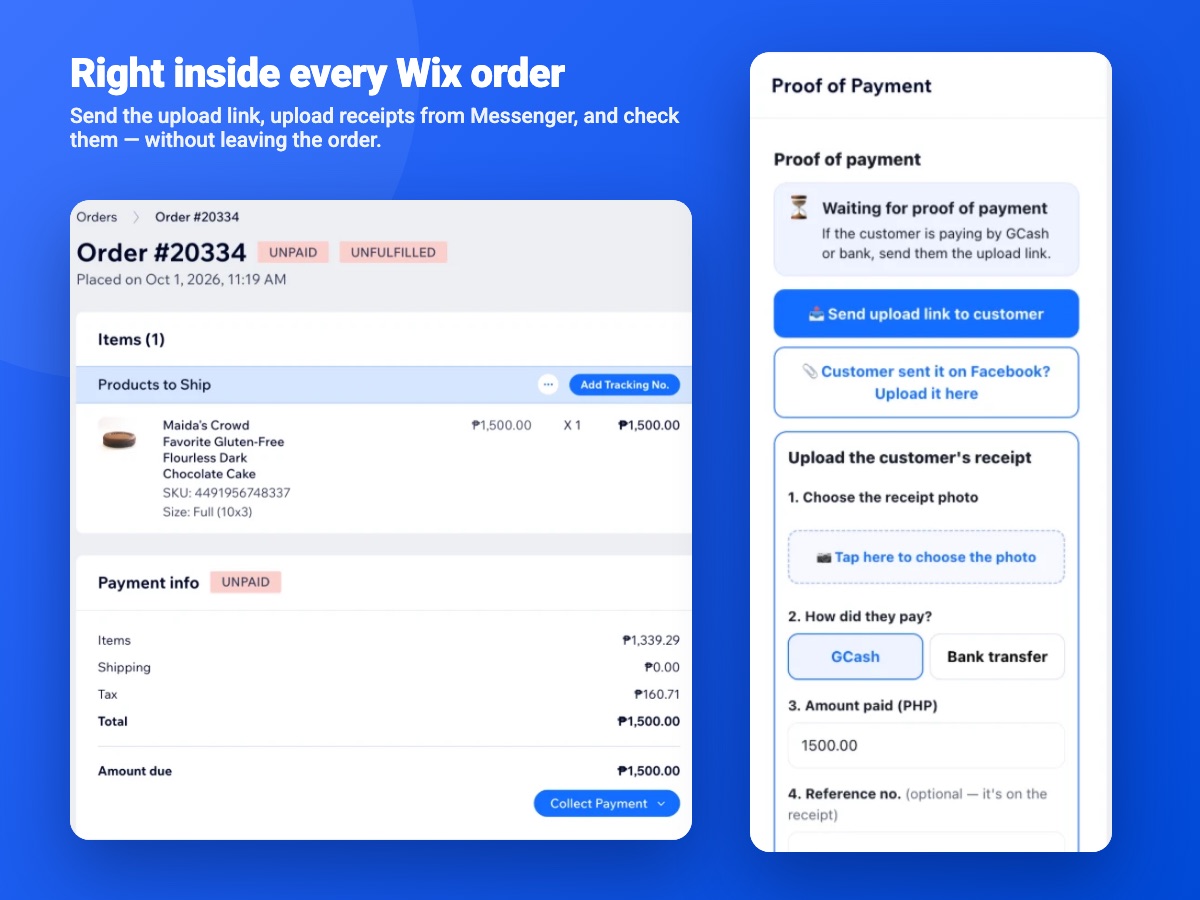
Keep customers paying your GCash or bank directly, with no fee per sale, but give the receipt a home on the order. That's what our Wix app, Z Proof of Payment, does.
- Send the link. From the Wix order, staff send the customer an upload link by Messenger, Viber or SMS.
- Customer pays and uploads. They open a phone-friendly page with your logo, GCash QR code and bank details, pay, and upload the receipt. The amount is already filled in.
- Staff check it. The receipt shows on the order next to the order total, with an amount-match check. Someone confirms the money arrived in your GCash or bank app, and the admin records the payment.
If a customer sends the receipt on Facebook anyway, staff can upload it to the order themselves. The app never marks an order paid on its own: a person verifies the receipt first. Then, if you switch it on, the app records the verified payment so the order shows as paid.
What it costs: from $14 a month, billed through Wix, with a 14-day free trial and no fee per sale. You need a Wix site with Wix eCommerce (Wix Stores). See the plans.
Which one should you pick?
- Just starting, a few orders a week: manual payment is enough. Keep the receipts in one place.
- Growing, and receipts are getting lost: manual payment plus a proof-of-payment app. You keep GCash direct and stop chasing screenshots.
- High volume, want it all automatic: a payment gateway. Budget for the fee on every sale.
Plenty of stores use two: a gateway for card payments and manual GCash for customers who prefer to send money directly.
“A screenshot can be edited. Check the payment in your own GCash app before you ship.”
Three habits that save you from bad payments
- Check your GCash app, not the screenshot. A screenshot can be edited. Before you ship, find the payment in your own GCash or bank history.
- Ask for the reference number. It's on every GCash receipt and makes the payment easy to find in your history.
- Ship after you record the payment. Recording it on the order first means everyone on the team can see it was checked.